
- What is the maximum size of a pre-recorded video file when uploading to Trainn?
- How can I pause a recording and resume it later when I'm ready for the next step?
- What is the maximum duration for screen recording?
- Why isn’t my video automatically processed into multiple clips based on interactions made?
- How do I upgrade from trial to paid plan?
- Can I upload a file into Trainn?
- How to download a video?
How to modify the video description?
Chethna
Jun 03, 2025
How to modify the video description?
Answer
The video description appears below your published video and provides a brief summary of your video content. This helps the viewers to understand the context of your video before watching and allows you to share additional information not covered in the video itself.
Trainn automatically generates descriptions based on video content.
Regenerate the description based on the latest changes
You can Regenerate the description after making video changes or edit the description to better serve your viewers.
Note: The image present in the image will also get removed in the description, when you choose to regenerate the description.
Steps
In this guide, we will learn how to modify the video description
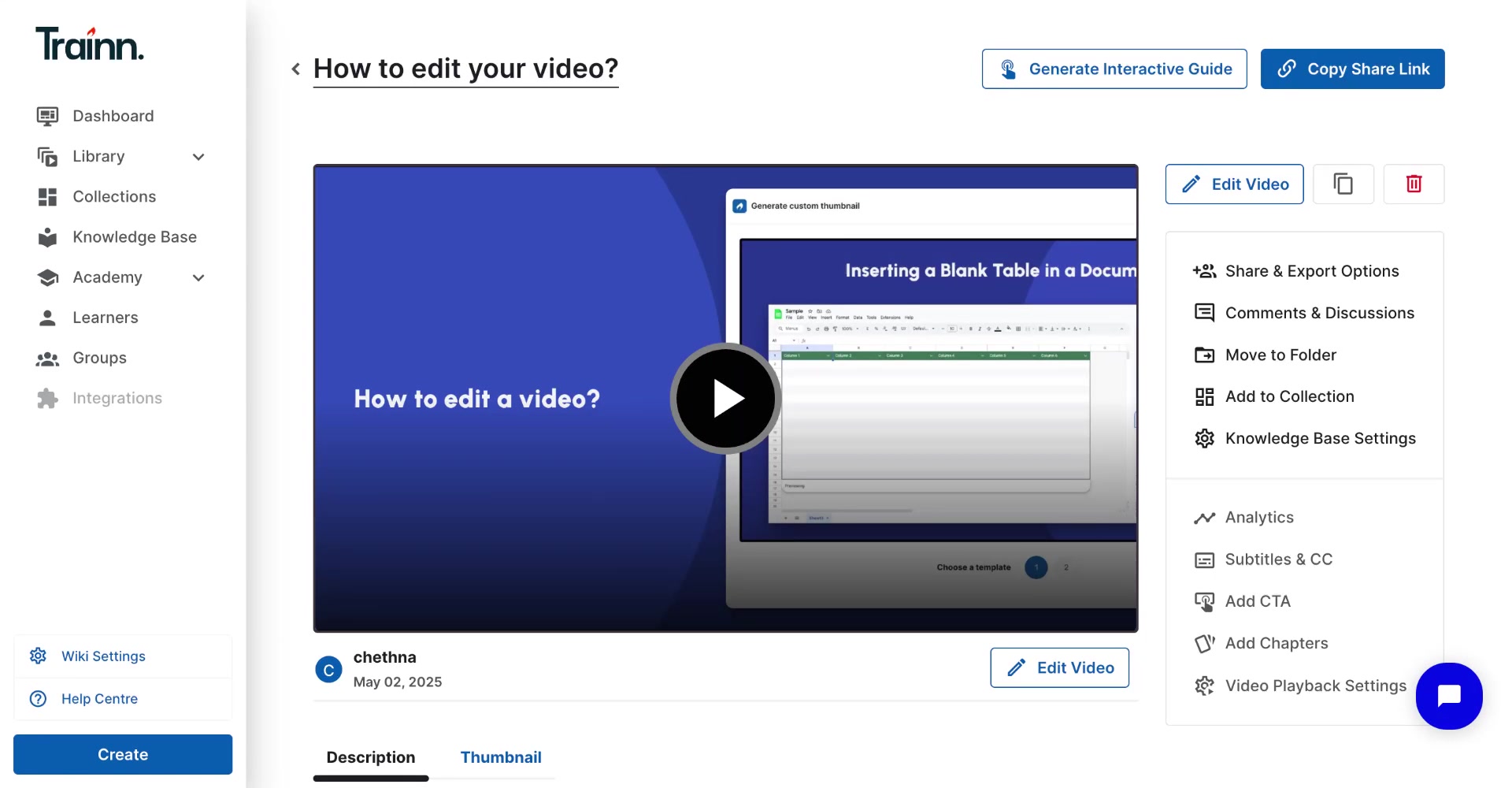
Go to the Published Video page.
Scroll down below the video to find the Description section
Modify the description using the available editing tools
Click on Save Changes to apply your modifications
To automatically update your description based on updates made to the video content.
Click on the Regenerate description based on the latest changes option to let Trainn automatically update your description based on the current video content.
Editing Options
You can modify your video description with various editing tools:
Text Editing
Headers
Use three levels of headers H1, H2, H3, to structure your content hierarchy.
Styles
For better readability, style your information to highlight important terms, feature names or to draw attention to important actions using:
Bold
Italic
Underline
Strikethrough
You can format your information by
Code text
To help distinguish the technical content from regular text like file names, code snippets, or command lines.
Block Quotes
To highlight important information or break the text flow like key takeaways, or warnings.
Links
It helps to direct your viewers to external resources or additional material like related tutorials, product pages, or support materials.
Description Layouts
It allows you to organize your information in the following ways:
Numbered lists
It helps in sharing sequential or step-by-step information like procedures or workflows
Bulleted lists
It’s easy to read or scan the related points in bulleted form, instead in the form of paragraphs. It helps to show feature lists, or benefits, and more.
Visual Elements
You can enhance the description with visual elements:
Images
It helps to support your content by pasting relevant screenshots or diagrams for explaining complex concepts/ workflow, or key interfaces. It supports images in JPEG, JPG, PNG, and GIF formats.
Divider
It helps to divide the information into digestible sections in your description, like between major topics or workflows.
Button/CTA
It helps to add the interactive element that guides viewers towards specific actions. It is useful for important actions “Start free trial” or “Download template”.
Important: Always remember to Save Changes, for descriptions to get saved with every interactions.
